How to Create an Audiobook With ElevenLabs
A detailed, screen-by-screen walkthrough of ElevenLabs’ Audiobooks workflow, from preparing your manuscript to exporting store-ready files, with the settings that matter and the mistakes to avoid.

In this article
ElevenLabs is best known for realistic AI voices, and it has a workflow made for audiobooks. To create an audiobook with ElevenLabs, open Audiobooks, choose Create an Audiobook, upload your EPUB or PDF, pick a single narrator or a multi-voice cast, check the chapters, voices and pronunciations, then generate, review and export MP3 or WAV files, or publish straight to ElevenReader, Spotify or InAudio. For audio good enough for most stores, you need the Pro plan ($99 a month), and a full-length novel uses most of its monthly credits.
We went through the whole flow on a real account with a public-domain book, Pride and Prejudice, to show you every screen, what it gets right, and the settings that are easy to miss.
What you need before you start
- Your book as an EPUB or PDF. The Audiobooks workflow accepts these two formats. EPUB usually works better, because chapters and headings are marked clearly.
- A paid plan if you’ll sell it. The Free plan is for non-commercial use. Starter ($6 a month) adds a commercial license, but only Pro ($99 a month) and above export at 192 kbps. See what it costs below.
- The audio rights. If a publisher holds your audio rights, you can’t publish an audiobook yourself.
- Time to listen. Setup takes under an hour. Listening to the finished book and fixing mistakes takes about as long as the audiobook itself, often 8 to 12 hours for a novel.
Part 1: Set up your audiobook
Step 1: Prepare your manuscript
Every character in your file is narrated, and every character costs a credit, so clean the file before you upload it:
- Remove what only works on the page: page numbers, running headers, footnote marks, image captions, tables, URLs and lines like “see the chart below”.
- Write out anything a voice could misread. Dates, currency, abbreviations and symbols are expanded automatically (see Step 13), but that can go wrong, so spell out the ones that matter.
- Mark scene breaks clearly, with a blank line or a symbol like ***, so you can add a pause there later.
- Decide on front and back matter. The copyright page, table of contents and acknowledgments usually aren’t narrated. You’ll be able to untick them in Step 4.
Step 2: Start a new audiobook and upload your file
In the left sidebar, open Audiobooks and choose Create an Audiobook (or Create a new project). Drag your EPUB or PDF into the upload area.

The same window also has Publish to ElevenReader, for listing an ebook with free AI narration that listeners choose themselves, and Create series, for grouping books. To make audio files you can sell elsewhere, stay on Create an Audiobook.
Step 3: Choose single cast or multi cast, and a model
Under Narration style:
- Single cast: one narrator voice for the whole book. Best for nonfiction, memoirs and most first books.
- Multi cast: a narrator plus a separate voice for each character ElevenLabs finds. Best for fiction with lots of dialogue.
Then choose the Model. When we tried it, the menu was set to Eleven v4, ElevenLabs’ newest model. Its own guide recommends Eleven Multilingual v2 for long-form audiobooks, where 1 credit is 1 character. Pick the model now: switching later only affects new audio, so you’d regenerate (and pay for) everything already made.
Select Continue. ElevenLabs parses your file, which took about 15 seconds for our 62-chapter novel.
Step 4: Check the cover and chapters
The Formatting screen shows the cover it found and every section it detected. Our EPUB came through with its cover and all 62 chapters.

- Cover image: keep it, Replace it or Remove it. This is the artwork ElevenLabs uses, not the square cover stores need (see Step 16).
- Sections: untick anything you don’t want read aloud. You can drag sections to reorder them.
Check this list carefully. ElevenLabs warns that it won’t always detect sections exactly as you intended, and a missing chapter or a merged one is much harder to fix after narration. For a first test, you can untick everything except one chapter, which keeps the project small.
Part 2: Cast the voices
Step 5: Review the detected characters
With Multi cast, ElevenLabs reads your manuscript, lists the characters it thinks speak, and gives each a voice, with a line of their dialogue to preview. This took about a minute. It found 19 speaking characters in Pride and Prejudice, and it can cast up to 150 voices in one book.

Treat this as a first draft. We ran the same book twice and got two different casts. In one, Mr. Darcy got a voice described as an “eccentric & husky character from the North of England”. In the other, Mrs. Bennet, the book’s most excitable character, got one described as “ASMR, Meditation, Hypnosis”. Neither fits.
Press the speaker icon next to each character to hear their voice on their own line. Delete characters who are duplicates or don’t really speak, and note minor or unnamed speakers, which the detection misses most often.
Step 6: Change a character’s voice
Click a character in the casting list to open their details:
- Name, which you can correct.
- Description, written by ElevenLabs from the book. Mr. Darcy’s read: “A wealthy, haughty gentleman of Derbyshire whose aristocratic pride and reserved demeanor initially offend others.” The voice suggestions are based on it, so fix it if it’s wrong.
- Preview line, the dialogue used to audition voices. Pick a line that shows how the character really sounds.
- Voices, in three tabs: Recommended for this character, Explore for the whole Voice Library, and My Voices for voices you’ve saved or cloned.
You can change all of this later in the editor too: open Characters in the left rail and press the settings button next to a name. There you also get the character’s Voice Volume, a Stability slider (from Creative to Robust), and Create new or remix voice to make a new voice for them.
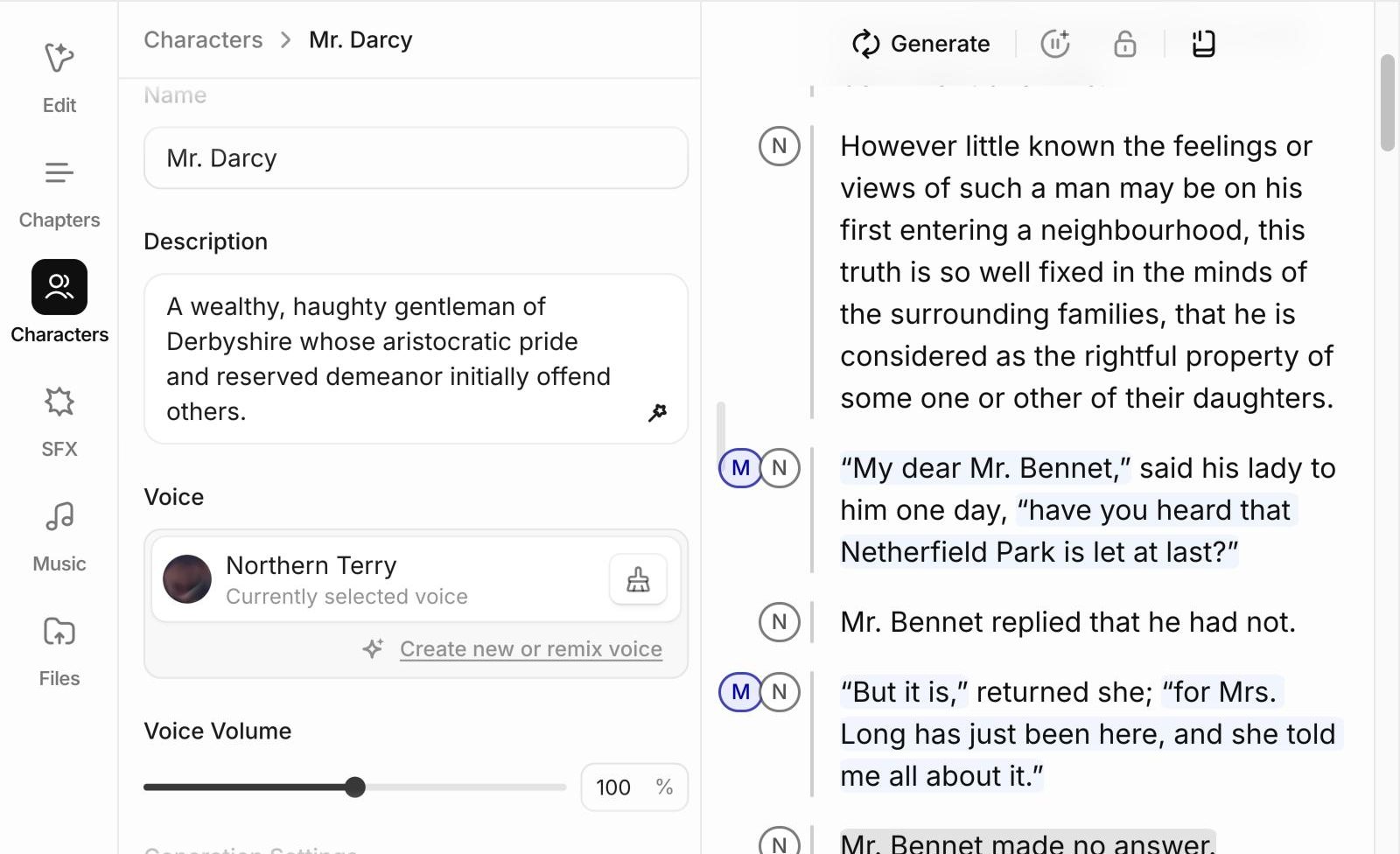
The Voice Library has over 10,000 voices, with filters for language, accent, gender and age. Choose voices that are clearly different from each other, especially for characters who talk to each other a lot, and keep accents consistent with the book. ElevenLabs notes that previewing a voice with custom audio uses credits.
To narrate in your own voice, clone it under Voices first (Instant Voice Cloning comes with Starter and up, Professional Voice Cloning with Creator and up), then pick it from My Voices.
Step 7: Add pronunciation rules
Next, ElevenLabs suggests words that might be read wrongly, each with the sentence it appears in. For Pride and Prejudice it picked names and places like Bourgh, Rosings, Pemberley and Hertfordshire.

For each word:
- Choose a rule type. Alias replaces the word with a spelling that sounds right, like “Burg” for Bourgh. It’s the easiest and works with every voice. IPA Phoneme and CMU Phoneme take an exact phonetic spelling, but ElevenLabs says phoneme rules only work on English models.
- Type the Output, the way it should be said.
- Set the matching. Two small buttons next to each word make the rule match only with exact capitals, or only whole words, so a rule for “Rose” doesn’t change “rosebush”.
- Press play to hear the rule in its sentence. A word can sound right alone and wrong in context.
Use Add rule for words it missed, and the voice menu at the top to set rules for one character only. Empty rules are skipped. When you’re ready, choose Create audiobook.
Part 3: Generate and edit
Step 8: Get to know the editor
The audiobook opens in the editor. On the left is a rail with Edit, Chapters, Characters, SFX, Music and Files. The text is on the right, and the player and timeline are along the bottom.
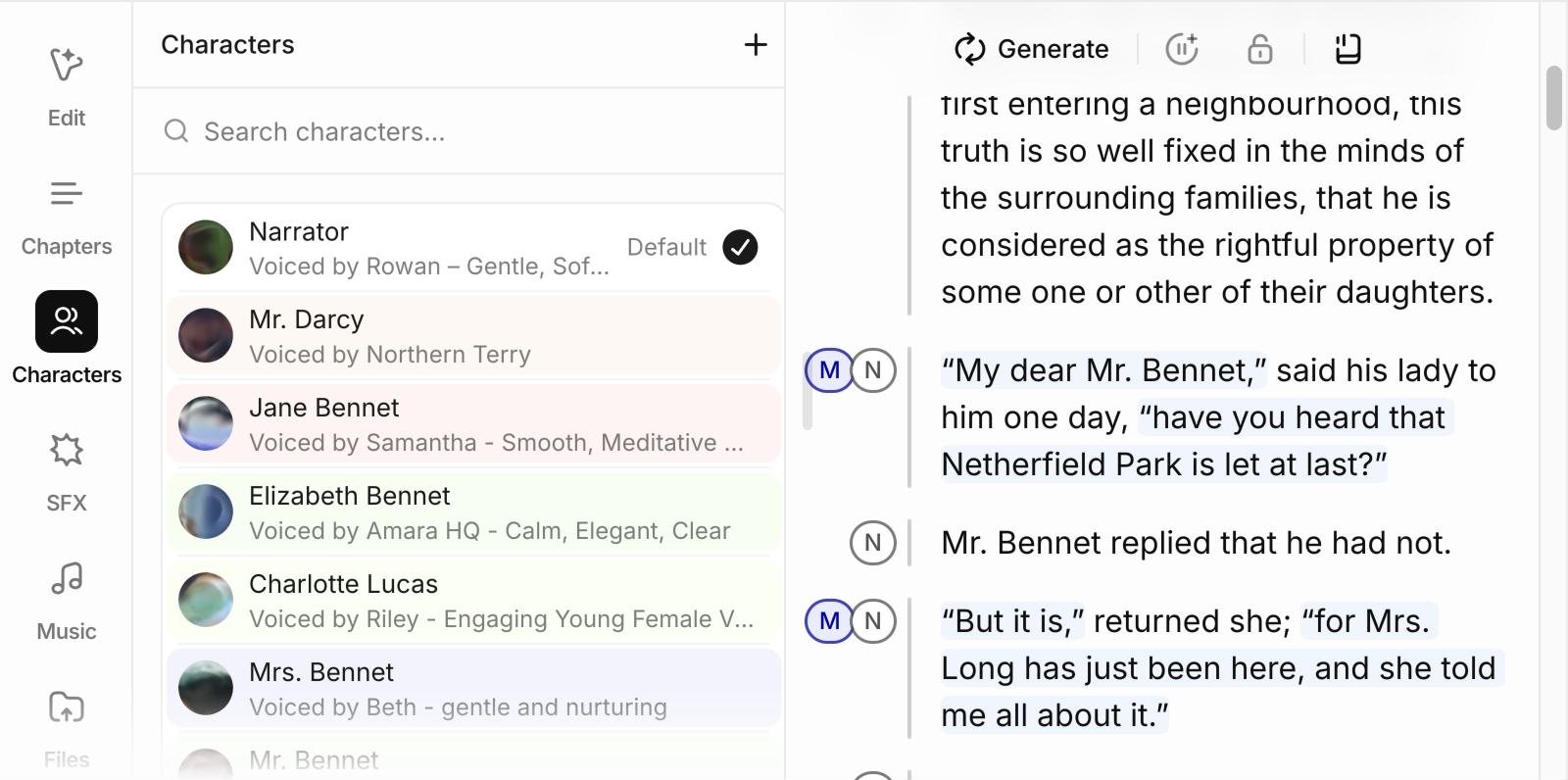
Each paragraph has a badge for its speaker, and dialogue is highlighted in that character’s color. A paragraph that mixes dialogue and narration, like “My dear Mr. Bennet,” said his lady to him one day, gets two badges: the character for the quote and the narrator for the rest. The bar to the left of each paragraph turns dark once it’s been generated.
Badges show only an initial, so Mr. Bennet and Mrs. Bennet both appear as M. Click a badge to see who it is. In our first chapter, ElevenLabs correctly alternated the two through a long run of dialogue with no “he said” or “she said”, which is hard to get right.
Step 9: Set the playback mode before you press Play
Pressing Play generates any audio that doesn’t exist yet, and that uses credits. The button to the left of the speed control switches between three modes:
- Playing until end (generate clips ahead): the default. It plays to the end of the chapter and generates several paragraphs ahead of you.
- Playing until end (generate one at a time): the same, but generating only as it goes.
- Playing selection: plays or generates only the paragraph you’ve selected.
Use Playing selection while you test voices and pronunciations, so you only pay for what you hear. Playing audio that’s already been generated is free.
Step 10: Generate, listen and fix
Work through the book chapter by chapter. When something sounds wrong, select the paragraph and use the Edit panel:

- Wrong speaker: change Character for that paragraph. Careful: with a paragraph selected, clicking a name in the Characters list also gives that paragraph to the character, which is quick when you mean it and easy to do by accident. Undo is at the top left.
- Flat or rushed delivery: press Generate (or Regenerate) for a new take. Every take uses credits, and Generation History keeps the earlier ones so you can go back to a better one.
- Wrong pace or tone: turn on Override voice settings to adjust that paragraph without changing the character everywhere. Speed, for example, ranges from 0.7 to 1.2.
- A heading read like a sentence: set Type to Heading or Text.
- No pause at a scene break: place the cursor and use Insert break in the toolbar.
- A take you’re happy with: Lock paragraph so it isn’t regenerated by accident.
- Volume and fades: set per paragraph, for example a fade-out at the end of a chapter.
Under AI Tools, Enhance text suggests changes to guide delivery, and Direct speech with your voice lets you record a line yourself so the AI voice copies your timing and emphasis. If you change a character’s voice later, it updates across the whole book, but their existing audio is cleared and has to be generated again.
Step 11: Add music or sound effects (optional)
The SFX and Music tabs let you add sound effects and music tracks, which appear as their own tracks on the timeline. Most audiobooks don’t use them: stores expect consistent narration, and ElevenLabs notes that sound effects aren’t supported in ElevenReader exports. A short music sting in the opening credits is about as far as most authors go.
Step 12: Listen to the whole book
Before exporting, listen to every chapter, ideally at 1.25x speed with the text in front of you. Look for:
- Lines given to the wrong character
- Mispronounced names that need a rule
- Skipped or repeated words
- Sudden changes in volume, pace or tone between paragraphs
- Headings, lists or numbers read awkwardly
When you export a full chapter or book, ElevenLabs says it checks for problems like missing or extra words and regenerates them up to twice at no extra cost, but it won’t catch everything a listener would.
Part 4: Export and publish
Step 13: Fill in the project settings
Open the menu at the top left and choose Project settings. It has three tabs:
- General: the default model, default character (narrator), language and ISBN.
- Export: the title, author, cover, description, genre and language written into your downloaded files.
- Advanced: text normalization and volume normalization.

Turn on volume normalization. It was off by default in our project. It “adjusts gain and applies dynamic compression to meet audiobook standards (-3db ceiling, -18db to -23db range)”, which matches the loudness ACX and many other stores use. Without it, chapters can vary in loudness.
Text normalization expands numbers and abbreviations so they’re read naturally. ElevenLabs warns it “can result in more hallucinations”, so if you hear extra words, turn it off and write those numbers out in the text.
Step 14: Export your files
Click Export at the top right and open the Export tab:
- Media type: audio, AAF timeline data for an audio editor, or subtitles.
- File structure: a single file, or a ZIP with a separate file for each chapter. Stores want one file per chapter, so choose the ZIP for a full book.
- Audio format: MP3 or WAV.
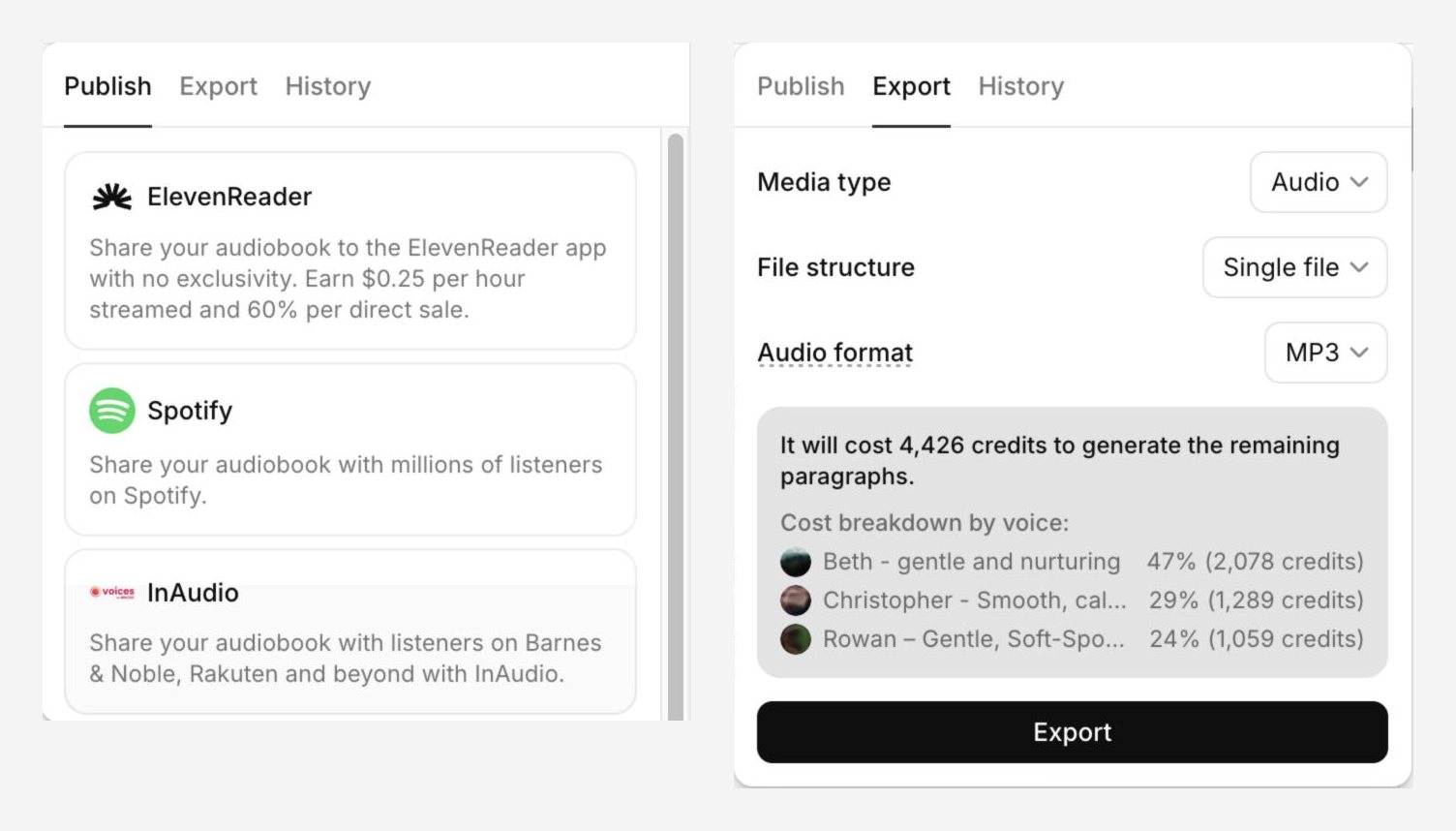
Any paragraphs not generated yet are generated during export, and ElevenLabs shows the cost first: our first chapter needed 4,426 credits, split by voice. Hover over Audio format to check your quality. On our Pro account it read “MP3 will be downloaded in 192kbps, WAV will be lossless.” On Free, Starter and Creator it’s 128 kbps.
Past exports stay in the project, so you can download them again without paying twice. If you change a few paragraphs and export again, you only pay for those paragraphs.
Step 15: Publish to ElevenReader, Spotify or InAudio
The Publish tab sends your audiobook straight to:
- ElevenReader: ElevenLabs’ own listening app, with no exclusivity. The app says you earn $0.25 per hour streamed and 60% of direct sales. You set up an author profile, add the book’s details and distribution settings, connect Stripe for payouts, and submit it for review.
- Spotify: through Spotify for Authors, labelled as digital voice narration.
- InAudio: Voices by INaudio, which distributes to stores like Barnes & Noble and Kobo.
To sell anywhere else, use the exported files.
Step 16: Add what stores need and upload
ElevenLabs makes the narration. A few parts of a finished audiobook are still up to you:
- Opening and closing credits. A short opening (“Title, written by…, narrated by…”) and closing credit, each as its own track. You can add them as chapters in ElevenLabs.
- A retail sample of up to five minutes, usually from the first chapter.
- A square cover. Audiobook stores want a square image, while your ebook cover is usually a tall rectangle. Make one at 3000 × 3000 pixels.
- An M4B, if you sell directly and want one file with chapter marks. ElevenLabs exports MP3 and WAV only.
- Store checks. Make sure each file meets the store’s specs, for example MP3 at 192 kbps or more and 44.1 kHz for Spotify.
- AI disclosure. Every store that accepts AI narration asks you to say so.
What it costs
ElevenLabs charges in credits. On Eleven Multilingual v2, 1 credit is 1 character of text. Plans in October 2026:
| Plan | Price | Credits a month | Export quality | Commercial use |
|---|---|---|---|---|
| Free | $0 | 10,000 | 128 kbps MP3 | No |
| Starter | $6 | 30,000 | 128 kbps MP3 | Yes |
| Creator | $22 | 121,000 | 128 kbps MP3 | Yes |
| Pro | $99 | 600,000 | 192 kbps MP3 or WAV | Yes |
| Scale | $299 | 1,800,000 | 192 kbps MP3 or WAV | Yes |
A 90,000-word novel is about 550,000 characters. That’s one Pro month for a single pass, and in practice $100 to $115 once you regenerate the lines that need it. A 30,000-word novella fits in about two months of Creator, but at 128 kbps, below what Spotify, Apple’s distributors and ACX ask for. For the full picture, see how much it costs to make an audiobook.
Where you can sell an ElevenLabs audiobook
| Where | Accepts ElevenLabs narration? |
|---|---|
| ElevenReader | Yes, published from the Publish tab |
| Spotify | Yes, ticked as digital voice narration |
| Google Play Books | Yes, with “Synthesized voice” as the narrator |
| Kobo | Yes, with the narrator listed as a synthesized voice |
| Apple Books | Yes, through a distributor, disclosed |
| Voices by INaudio | Yes, when exported or published from ElevenLabs |
| Your own shop | Yes, for example on Gumroad |
| Audible (ACX) | No. See does ACX accept AI audiobooks |
Common mistakes to avoid
- Pressing Play in the default mode while testing. It generates paragraphs ahead of you. Switch to Playing selection.
- Keeping the automatic cast. Listen to every character before you generate a whole chapter.
- Changing the model or a main voice halfway through. Both mean regenerating, and paying for, everything already made.
- Exporting at 128 kbps for stores. Spotify, Apple’s distributors and ACX all ask for 192 kbps or more.
- Forgetting volume normalization. It’s a single switch in Project settings, and it was off.
- Skipping the full listen. Small mistakes are what reviewers notice.
ElevenLabs or an audiobook generator?
ElevenLabs is a powerful general-purpose voice studio with an audiobook workflow, and you pay for every character, including every retake. If you want the finished files without managing credits, playback modes and settings, an audiobook generator built only for books handles the casting, pronunciations, chapter files, M4B and square cover for you. For the full process from manuscript to store, see how to make an audiobook.
FAQ
Can you make an audiobook with ElevenLabs for free?
You can try it on the Free plan, with 10,000 credits a month, enough for about 10 minutes of narration. Free audio is for non-commercial use and exports at 128 kbps, so to sell your audiobook you need a paid plan, and realistically Pro.
Which ElevenLabs plan do I need for an audiobook?
Pro ($99 a month) is the first plan with 192 kbps MP3 and lossless WAV, and its 600,000 credits cover about one 90,000-word novel. Cheaper plans work for testing or a short book, but export at 128 kbps.
Can I sell an audiobook made with ElevenLabs?
Yes, on a paid plan, as long as you own the rights to the book and the store accepts AI narration. Spotify, Google Play, Kobo, Apple Books (through a distributor), ElevenReader and your own shop do.
Can I upload an ElevenLabs audiobook to Audible?
No. ACX requires human narration unless Audible authorizes otherwise, so AI narration made with ElevenLabs isn’t accepted. Amazon’s own AI option is Virtual Voice, an invite-only KDP beta.
Does ElevenLabs export M4B?
No. It exports MP3 or WAV, as one file or a ZIP of chapters. Stores want chapter MP3s, so that’s fine for publishing, but you’ll need another tool if you want an M4B for direct sales.
Does pressing Play in ElevenLabs use credits?
Only when it generates new audio. In the default playback mode it generates paragraphs ahead of you, so switch to Playing selection while testing. Replaying audio that already exists is free.
Can I narrate with my own voice?
Yes. Instant Voice Cloning is included from the Starter plan and Professional Voice Cloning from Creator. Use only your own voice, or a voice you have written permission to clone.
How long does it take?
Setup takes under an hour, including casting and pronunciations. Generation is fast, but listening to a full-length book and fixing mistakes takes about as long as the audiobook itself, often 8 to 12 hours for a novel.
Ready to make yours?
ElevenLabs gives you studio-grade voices if you’re happy to manage credits, casting and settings yourself. If you’d rather upload your book and get store-ready files, our AI audiobook generator gives every character a voice, fixes pronunciations once for the whole book, and exports chapter MP3s, an M4B and a square cover, with your first chapter free.
Philip Ghezelbash is the founder of Audiobook Generator and the author of The Stoic Body, which has sold over 10,000 copies on Amazon. He writes about making, publishing and selling audiobooks.
Keep reading
How to Sell Audiobooks on Shopify
Turn your Shopify store into an audiobook shop: the free Digital Products app, file limits, delivery, tax and the apps worth knowing.
Philip Ghezelbash··7 min read
How to Sell Audiobooks on Payhip
A simple store for your audiobook with audio previews and tax handled: setup, files, pricing and fees, step by step.
Philip Ghezelbash··7 min read
How to Sell Audiobooks on Gumroad
Sell your audiobook straight to readers from a Gumroad page: setup, files, pricing, fees and tax, step by step.
Philip Ghezelbash··7 min read